Phone cameras got good years ago. Phone video editors mostly didn't — you either get a toy that can trim a clip and add a sticker, or an app that uploads your footage to someone's server and stamps a logo on the result unless you subscribe. Vedit is our attempt at the editor we actually wanted: a proper timeline with separate video and audio tracks, real transitions and colour controls, clean HD export, and all of it running on your own device.
In this article
A timeline that behaves like a desktop editor
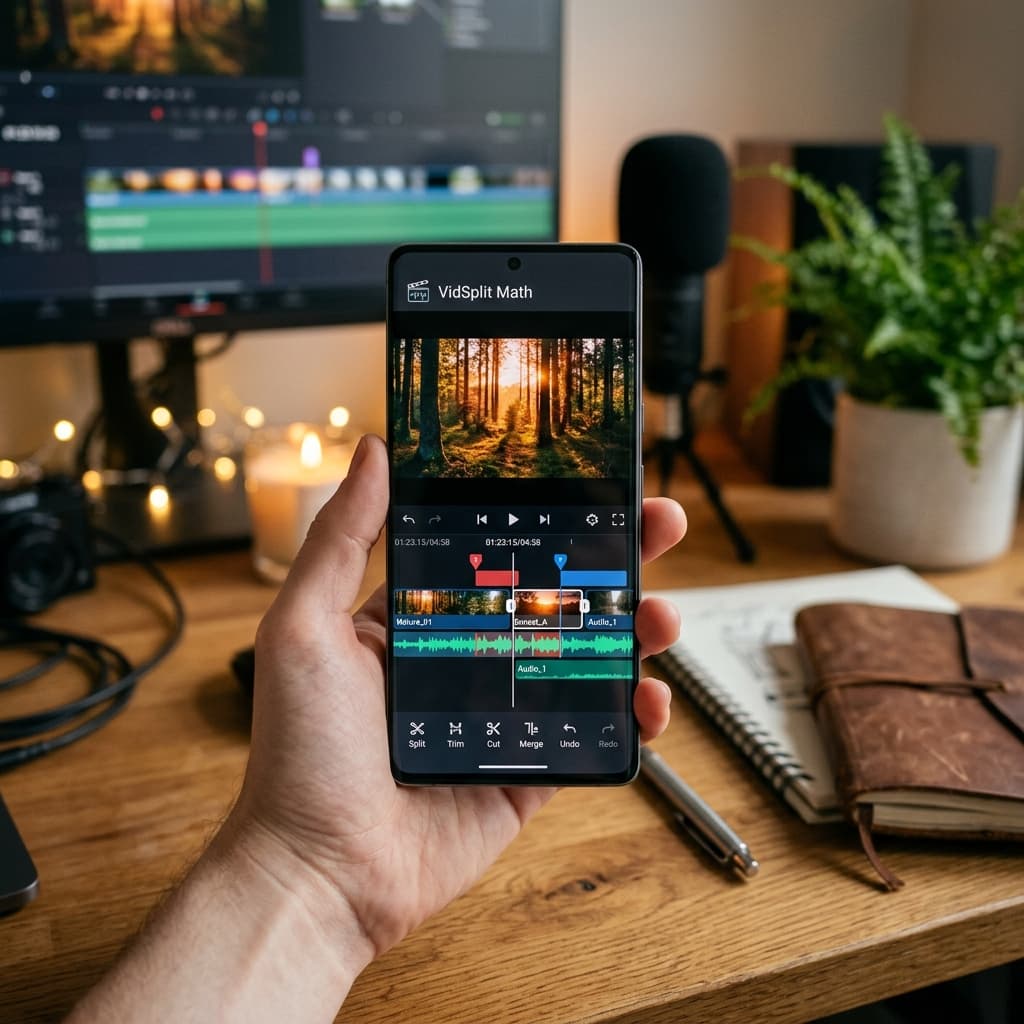
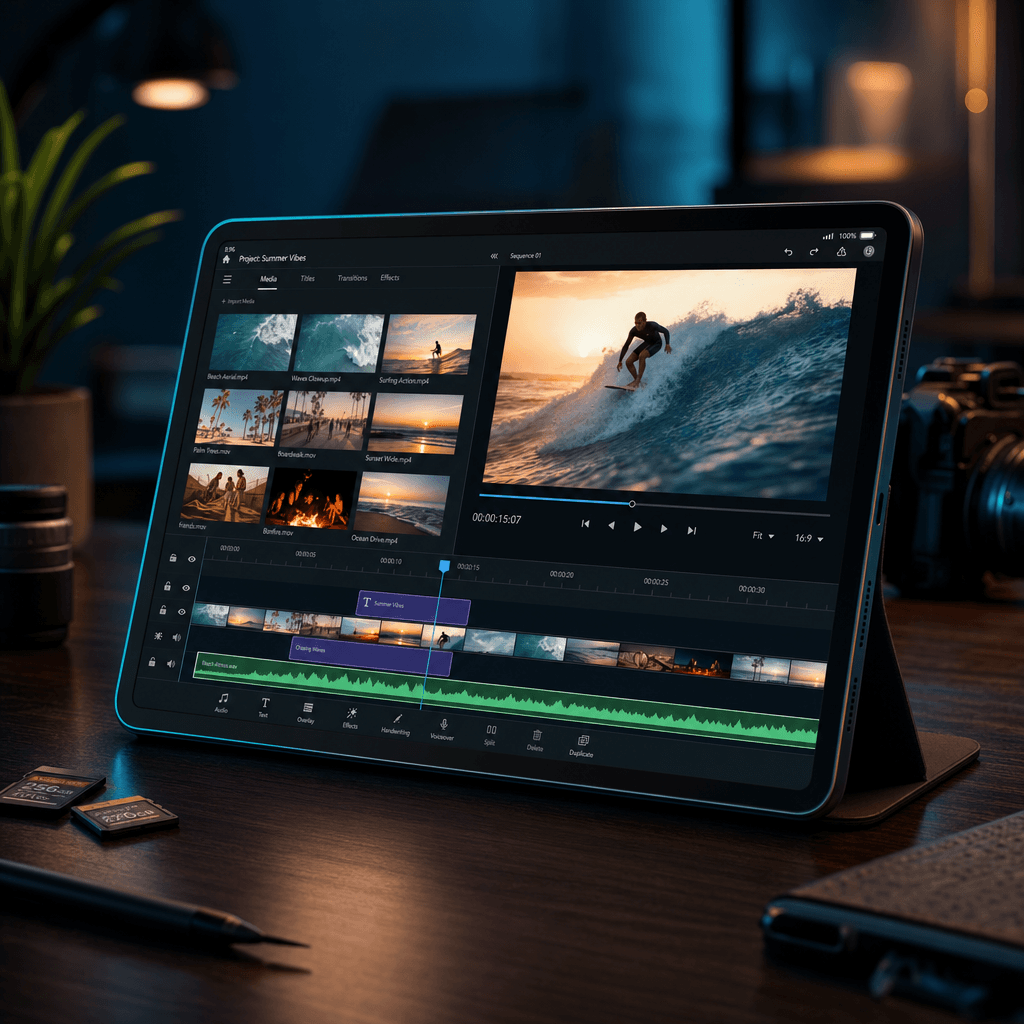
Everything in Vedit happens on a multi-track timeline, the same mental model you'd use in a desktop editor. Clips sit on separate video and audio tracks, and you can see what's inside them — filmstrip thumbnails on video clips and waveforms on audio — so you always know where you are.
- Drag to reorder, drag the edges to trim — right down to the frame.
- Magnetic snapping lines clips up against each other, the playhead or the start of the project. Turn it off with the magnet button when you want free placement.
- Split at the playhead in one tap, and ripple delete to close the gap a removed clip leaves behind.
- Linked audio and video move and trim together so they never drift out of sync — unlink them when you want to edit sound separately.
- Photos on the timeline behave like clips and stretch to any length.
- Track controls to hide, mute or lock a whole track.
- 50 levels of undo and redo, so experimenting is free.
Transitions between clips
Tap the small button on the seam between two clips to add a transition: Fade, Dissolve, Wipe Left, Wipe Right, Slide Left, Slide Right, Circle Open or Zoom. A slider sets the duration, and transitions can be chained back-to-back across a whole sequence.
Colour, effects and green screen
Select any clip and the inspector panel opens with tabs for effects, transform, speed, colour, chroma key and text. Changes preview live as you drag, and each adjustment counts as a single undo step.
- Colour grading — brightness, contrast, saturation, temperature and exposure, per clip.
- Chroma key (green screen) with colour presets plus similarity and blend controls, so you can drop yourself in front of any background.
- Opacity to blend a clip with the layers beneath it.
- Crop, rotate, flip and scale each clip independently.
- Reverse a clip with one tap.
- Freeze frame — grab a still at the playhead and insert it as its own clip.
Speed and sound
- Speed control from 0.25× slow motion to 4× fast-forward.
- Per-clip volume from silent up to 200%.
- Detach audio from a video clip and slide the sound independently — perfect for J-cuts and L-cuts.
- Record a voiceover straight into your project with the microphone.
- Shoot new footage with the built-in camera and drop it onto the timeline without leaving the app.
Text and titles
Add text overlays anywhere on the timeline and style them properly: font size, colour, background box, alignment, bold, italic and outline. Drag each title to exactly where you want it on the canvas — lower thirds, captions, a big opening title — and set how long it stays on screen.
The right shape for every platform
Pick your canvas before you start: 16:9 for YouTube and landscape video, 9:16 for Reels, Shorts, TikTok and Stories, 1:1 square, 4:5 portrait for feeds, 4:3 classic or 21:9 cinematic. Putting portrait footage on a landscape canvas? Switch on the blurred-background fill instead of black bars.
Export that respects your work
- Resolution — original, 1080p, 720p or 480p.
- Frame rate — 24, 30 or 60 fps.
- Codec — H.264 for maximum compatibility or H.265/HEVC for smaller files.
- Quality slider to trade file size against quality.
- Save to your gallery or share directly to any app.
- An export queue — line up several exports and walk away.
- Preview render and work-area markers — render a quick low-resolution preview of just the part you're working on, or export only a selected range.
Projects that don't get lost
Vedit keeps multiple projects on its home screen, each with a thumbnail, resolution and date. Everything saves automatically as you work, and if the app ever closes unexpectedly, a recovery prompt reopens your last session exactly where you left off.
Private by design
Vedit does all of its processing on your phone. Your videos and photos are never uploaded to a server, and you don't need an account to use it. The only permissions it asks for are the obvious ones: the microphone for voiceovers, the camera for in-app recording, and your media library to import footage and save exports.
If you just need to cut a long video into shorter clips, our lighter VidSplit Math is built for exactly that.
Frequently asked questions
Is Vedit free?
+
Yes. Vedit is free to download on Android.
Does Vedit add a watermark?
+
Only if you want it to. The watermark is a toggle in the export options — switch it off and your export is clean.
Does Vedit upload my videos?
+
No. All editing and exporting happens on your device. Vedit never uploads your videos or photos, and it doesn't require an account.
Can Vedit export in 1080p at 60fps?
+
Yes. You can export at original resolution, 1080p, 720p or 480p, at 24, 30 or 60 fps, using H.264 or H.265.
Can I make vertical videos for Reels, Shorts or TikTok?
+
Yes. Choose the 9:16 canvas when you create your project. Vedit also supports 16:9, 1:1, 4:5, 4:3 and 21:9.
Does Vedit support green screen?
+
Yes. The chroma key tool removes a green (or other) background, with similarity and blend controls for a clean edge.